

Already created a PlanetScale Postgres database? Jump straight to integration instructions.
- Creating a new Postgres database
- Cluster configuration options
- Connecting to your database
Prerequisites
Before you begin, make sure you have a PlanetScale account. After you create an account, you’ll be prompted to create a new organization, which is essentially a container for your databases, settings, and members. After creating your organization, it’s important to understand the relationship between databases, branches, and clusters.- Database: Your overall project (e.g., “my-ecommerce-app”)
- Branch: Isolated database deployments that provide you with separate environments for development and testing, as well as restoring from backups - learn more about branching
- Cluster: The underlying compute and storage infrastructure that powers each branch
Create a new database
- Dashboard
- CLI
Step 1: Navigate to database creation
Log in to your PlanetScale dashboard
Step 2: Choose database engine
On the database creation form, you’ll see two engine options:
- Vitess (MySQL-compatible)
- Postgres (PostgreSQL-compatible)
Step 3: Configure your database cluster
Database name: Enter a unique name for your database
This “name” is referenced in the PlanetScale Dashboard and APIs and not created as a logical database inside of Postgres.
Region: Choose the primary region where your database will be hosted. For the lowest latency, select a region near you or your application’s hosting location.
Cluster configuration: Select your preferred cluster size and CPU architecture
Step 4: Create the database cluster
What happens during creation
When you create a Postgres database cluster, PlanetScale automatically:- Provisions a PostgreSQL cluster in your selected region
- Creates the initial
mainbranch - Prepopulates Postgres with required default databases
- Sets up monitoring and metrics collection
- Configures backup and high availability settings
Integrate with Cloudflare Workers
Don’t have a Workers project yet? Create a Workers project from the Postgres Hyperdrive template.Terminal
Step 1: Create a Hyperdrive connection
You can automatically create a connection from the PlanetScale dashboard when creating a new role, or use one of the methods below.- Dashboard
- CLI
Log into the Cloudflare dashboard and navigate to “Compute & AI” > “Workers & Pages”. You should see your Worker in the list.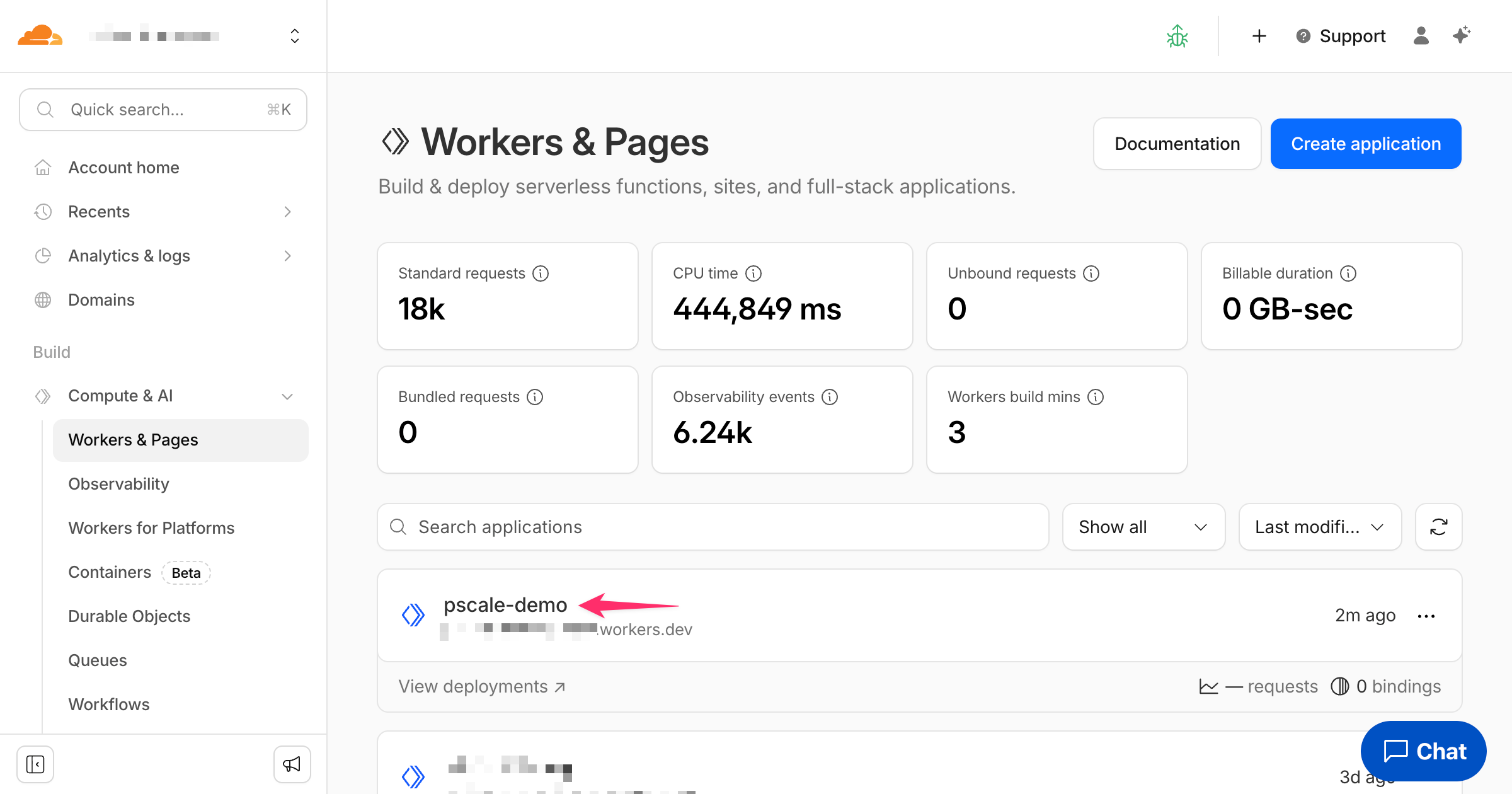
Select the “Storage & databases” tab, then “Hyperdrive”, and finally “Create configuration” in the top right corner.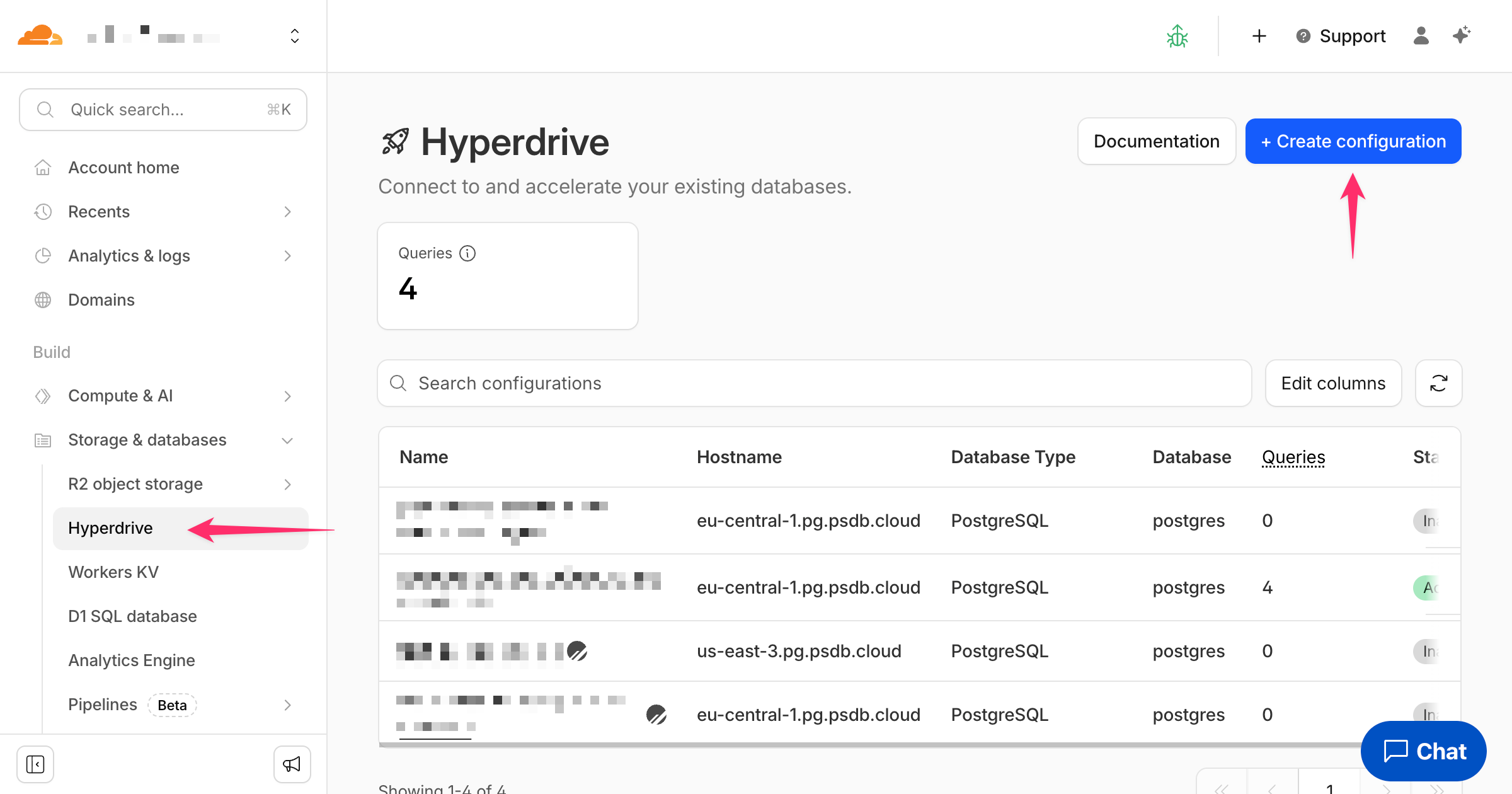
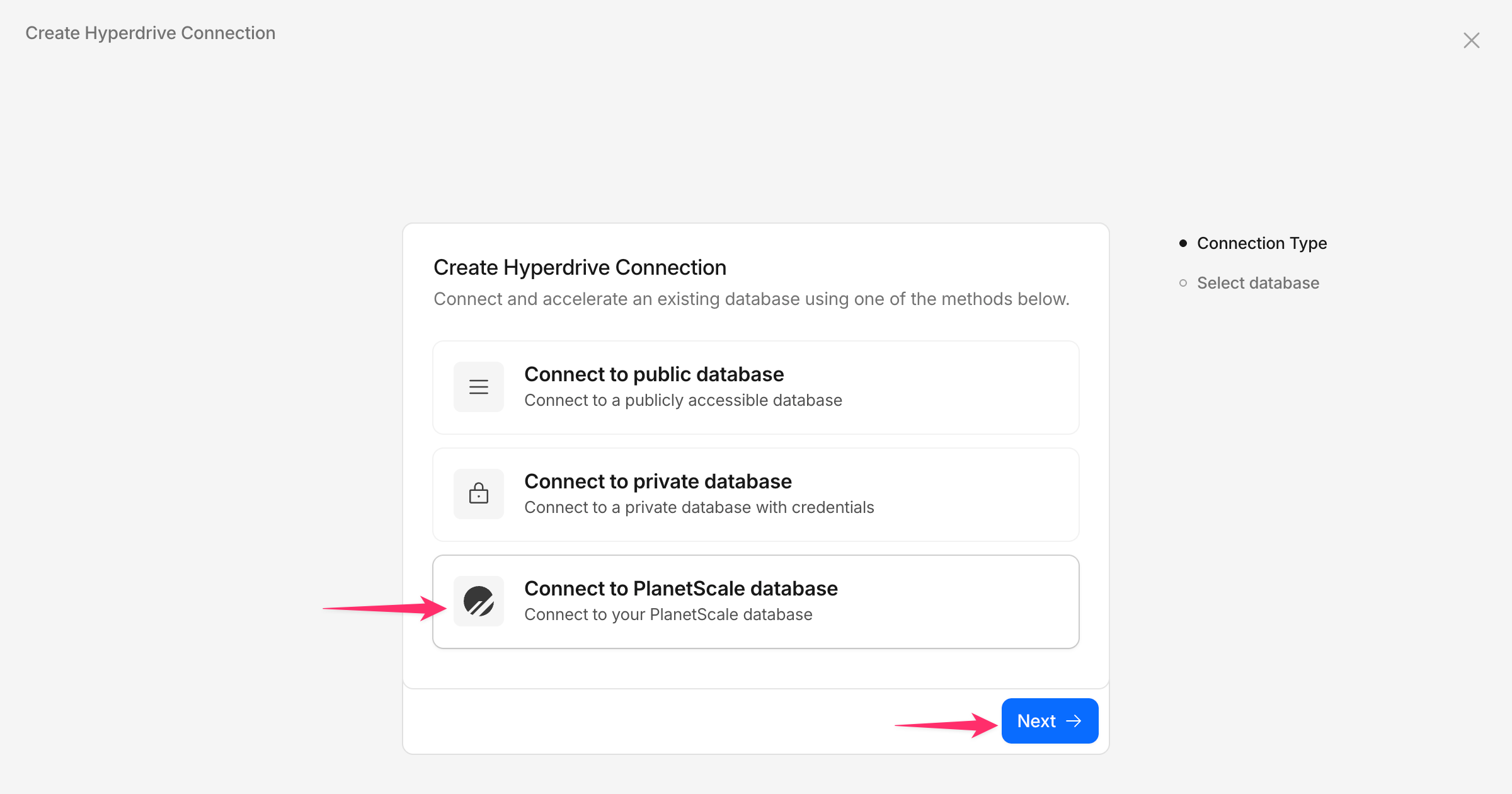
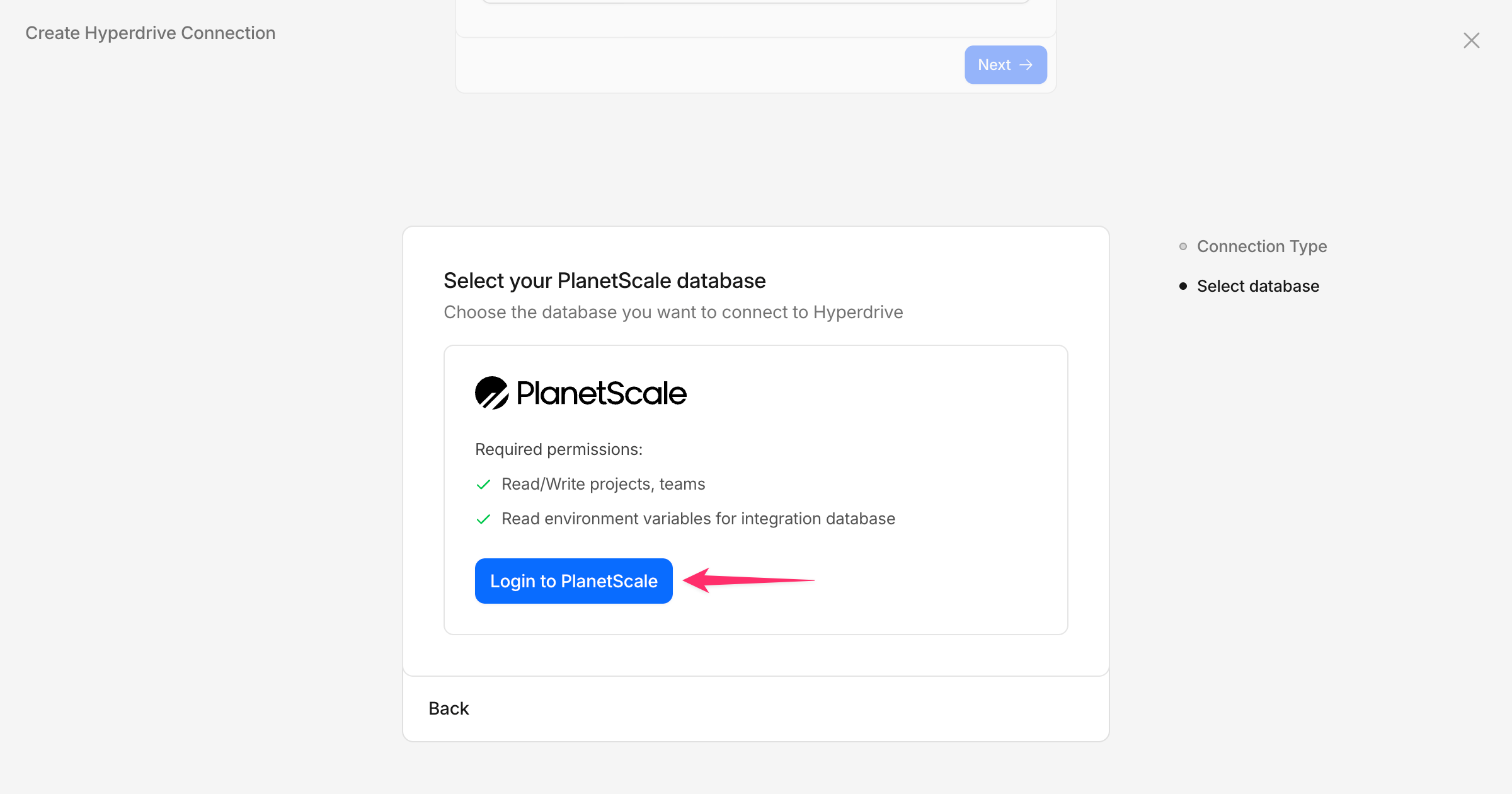
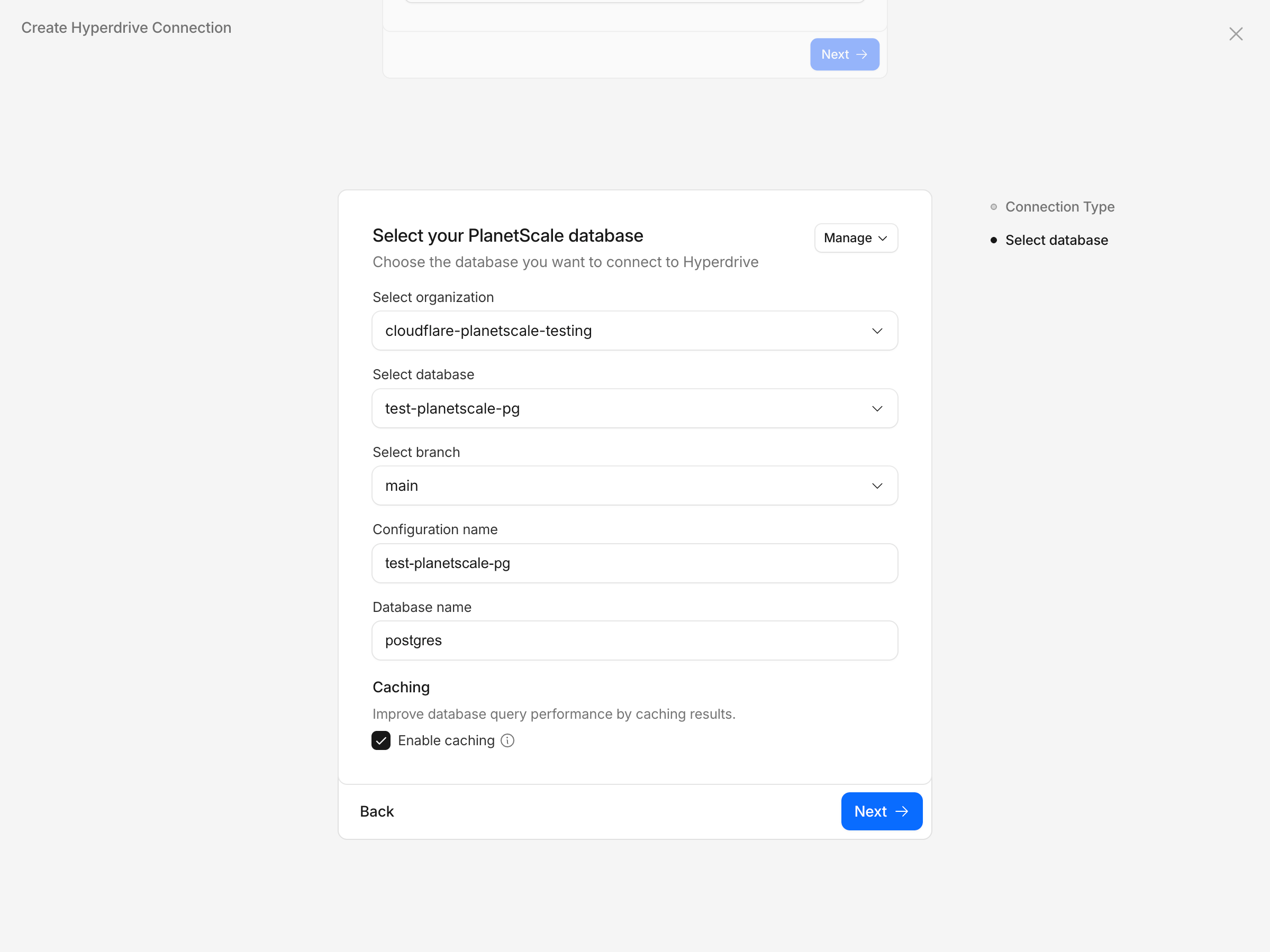
The next screen will allow you to grant access to your organization, database, and branch. Start by selecting your organization from the list.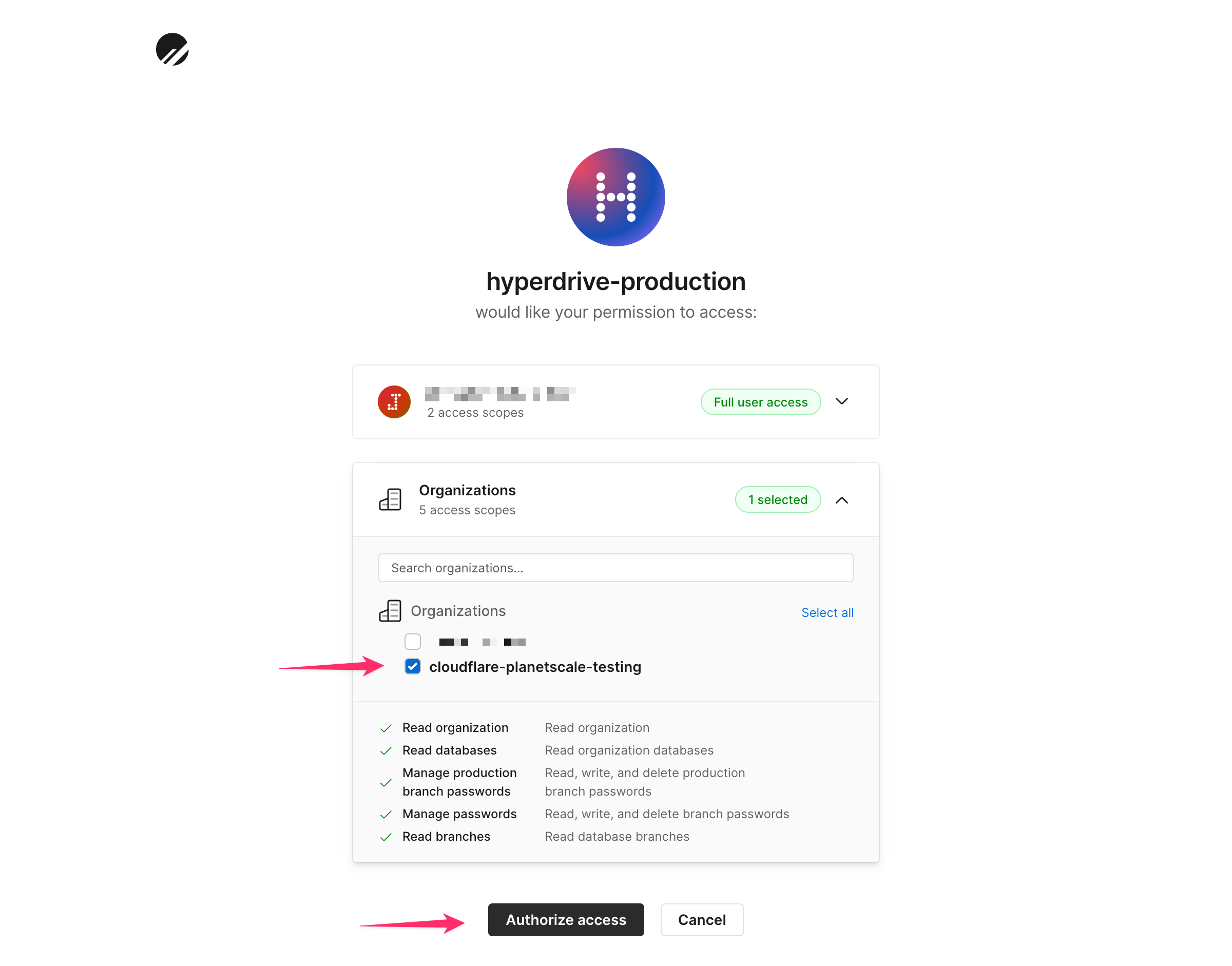
You should see a success screen with the connection binding details to add to your 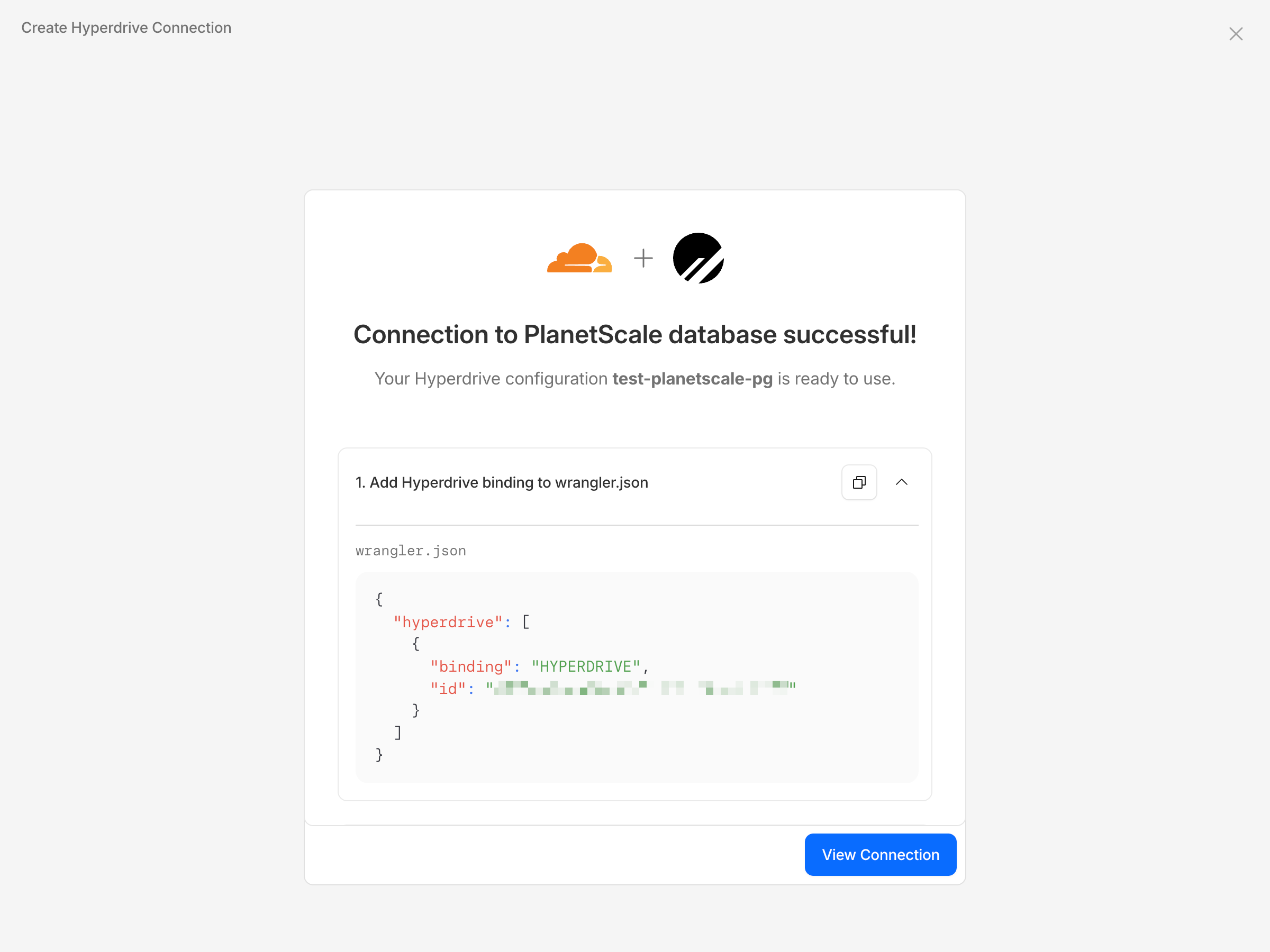
wrangler.json file.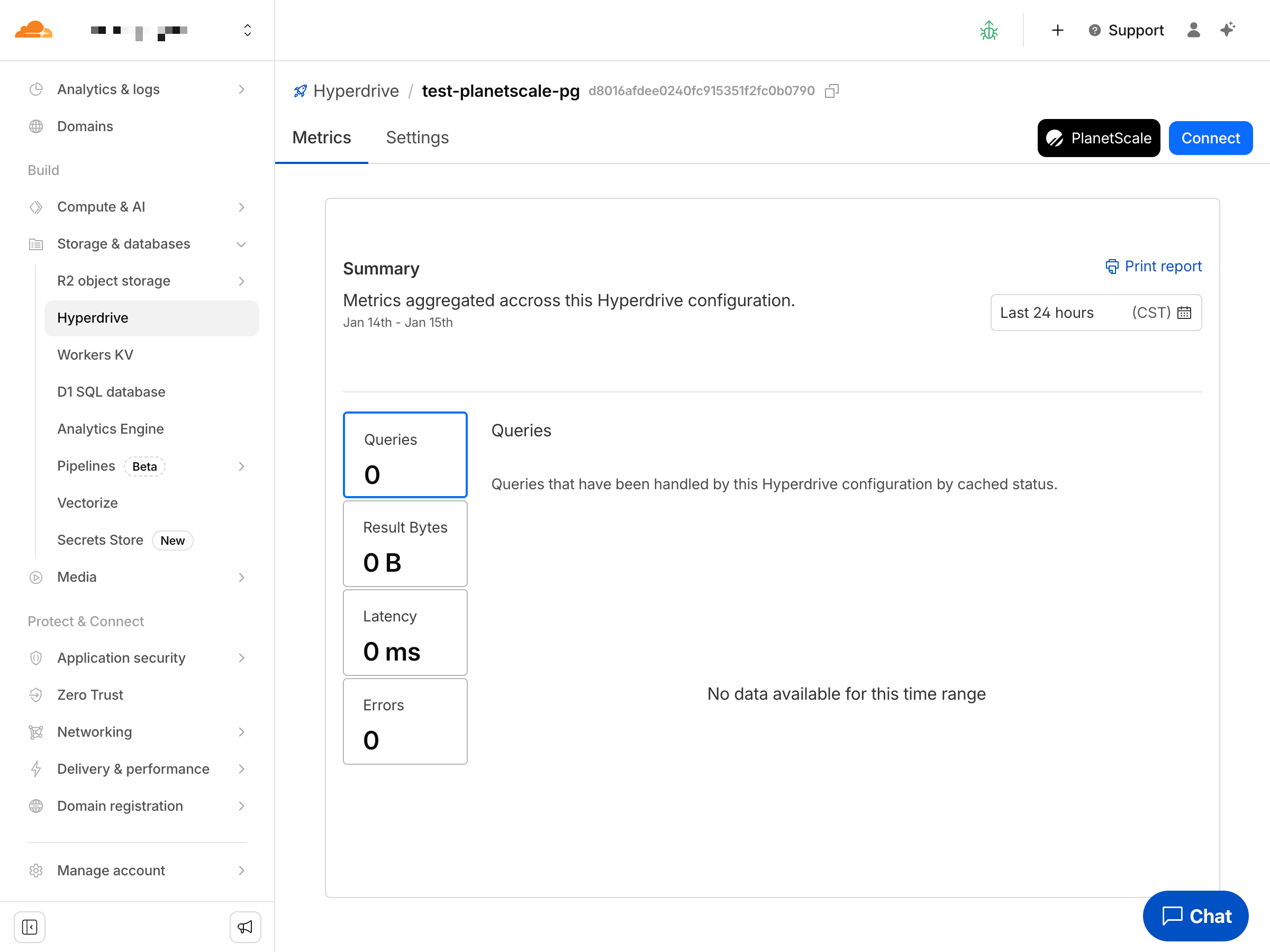
Configure Worker placement
By default, Workers run at the edge close to your users. For database-heavy workloads with multiple round trips, you can use placement hints to run your Worker closer to your PlanetScale database and reduce latency. Add aplacement configuration to your wrangler.jsonc file with the region that matches your PlanetScale database region:
wrangler.json
PlanetScale region to placement hint mapping
PlanetScale region to placement hint mapping
| PlanetScale Region | Placement Hint |
|---|---|
| AWS ap-northeast-1 (Tokyo) | aws:ap-northeast-1 |
| AWS ap-south-1 (Mumbai) | aws:ap-south-1 |
| AWS ap-southeast-1 (Singapore) | aws:ap-southeast-1 |
| AWS ap-southeast-2 (Sydney) | aws:ap-southeast-2 |
| AWS ca-central-1 (Montreal) | aws:ca-central-1 |
| AWS eu-central-1 (Frankfurt) | aws:eu-central-1 |
| AWS eu-west-1 (Dublin) | aws:eu-west-1 |
| AWS eu-west-2 (London) | aws:eu-west-2 |
| AWS sa-east-1 (Sao Paulo) | aws:sa-east-1 |
| AWS us-east-1 (N. Virginia) | aws:us-east-1 |
| AWS us-east-2 (Ohio) | aws:us-east-2 |
| AWS us-west-2 (Oregon) | aws:us-west-2 |
| GCP asia-northeast3 (Seoul) | gcp:asia-northeast3 |
| GCP europe-west1 (Belgium) | gcp:europe-west1 |
| GCP northamerica-northeast1 (Montreal) | gcp:northamerica-northeast1 |
| GCP us-central1 (Iowa) | gcp:us-central1 |
| GCP us-east1 (South Carolina) | gcp:us-east1 |
| GCP us-east4 (Virginia) | gcp:us-east4 |
"mode": "smart" for automatic placement based on measured latency:
wrangler.json
Step 2: Deploy your Worker
Run the following to deploy your Worker.Terminal
What’s next?
Once you’re done with development, consider these next steps:- Create additional roles: Set up application-specific roles with appropriate permissions for your production workloads. The “Default role” is meant for administrative purposes and has significant privileges.
- Use branching for development: Create database branches to safely test schema changes before deploying to production.
- Set up monitoring: Configure query insights to monitor database performance and identify slow queries.